Setting Up SSH
Select your operating system and follow this guide to set up an SSH connection from your local computer to MOGON.
- Ask your PIPI stands for Principal Investigator, typically your project lead or supervisor who manages HPC access requests. to add your JGU account to an HPC project.
- Generate an SSH key pair on your local machine.
- Upload your public SSH key to your JGU account.
- Prepare your smartphone for 2FA by installing freeOTP or privacyIDEA.
- Send an e-mail to the HPC Group from your JGU account.
- Complete the 2FA configuration with an HPC admin.
- Log in to MOGON via SSH.
Generating SSH Keys
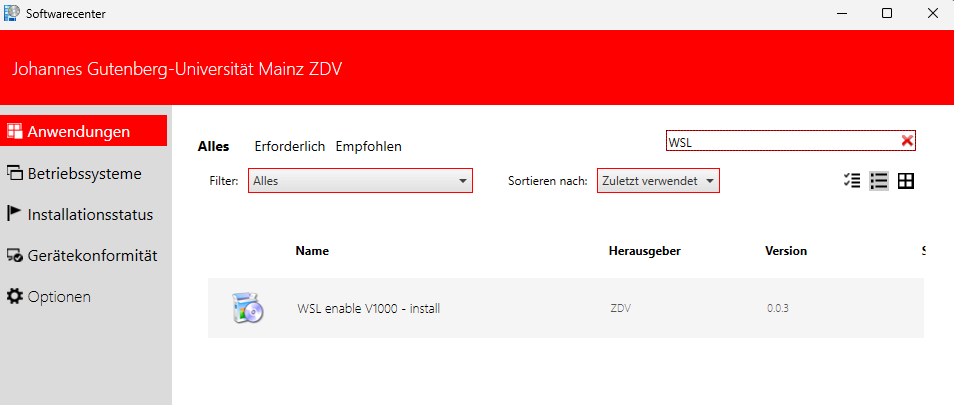
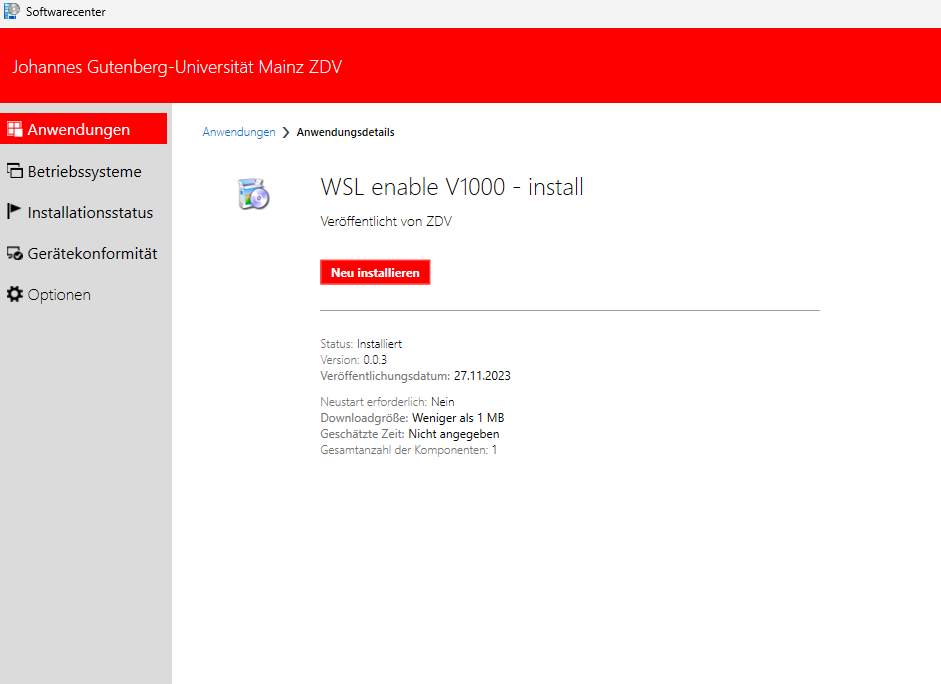
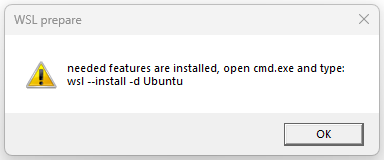
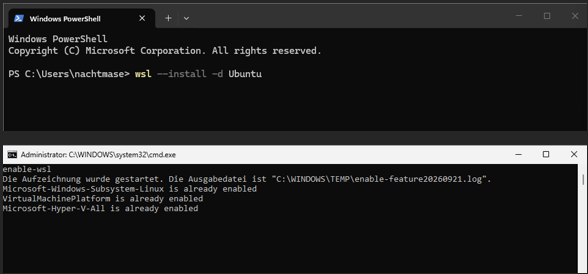
If you use WSLThe Windows Subsystem for Linux (WSL) lets you run a Linux environment on Windows. WSL2 (default) uses a lightweight virtual machine with a full Linux kernel for compatibility and performance. to connect to MOGON, please follow the instructions described in the Linux section.
The instructions below guide you through the process of creating your personal SSH key-pair using different tools. Choose the one you want to use and perform the specified steps.
-
Start by opening PowerShell.Press the Windows key, type ‘PowerShell’, and press Enter.
-
Verify OpenSSHOpenSSH is free software that enables secure connections to remote systems. is installed on your system. In the PowerShell, run:
ssh -VIf installed, you’ll see an output like below. Your version might vary - the steps should still work:
OpenSSH_for_Windows_9.5p1, LibreSSL 3.8.2Run the following command to verify that the
ssh-agentis running:Get-Service ssh-agentIf it’s not running, start it:
Start-Service ssh-agent -
To Navigate to your (hiddenThe .ssh directory is hidden because it starts with a dot (.), meaning it’s not visible in standard file listings or Explorer views. You can still access it directly, or show hidden files with ’ls -a’ in terminals or View > Show > Hidden items in Explorer.) .ssh directory:
cd ~/.ssh/If the folder doesn’t exist (yet), create it by running:
mkdir ~/.ssh -
Generate an SSH key pair by running this command in PowerShell:
ssh-keygen -t ecdsa -b 521 -C "HPCGATE,HPCLOGIN"-t ecdsa: Specifies the ECDSA algorithm-b 521: Sets the key size-C "HPCGATE,HPCLOGIN": Adds a comment
Alternative: Use
ed25519if supported (faster/secure):ssh-keygen -t ed25519 -C "HPCGATE,HPCLOGIN"ssh-keygenwill prompt for a file namePress Enter to confirm the default or provide an alternative. A meaningful name might be ~/<Your_USERNAME>/.ssh/id_ed25519_mogon_laptop.:Enter a file in which to save the key (C:\Users\<Your_USERNAME>/.ssh/id_ecdsa): -
Set a passphraseA passphrase is a sequence of words or text, longer and more secure than a single-word password, making it memorable yet strong (e.g., ‘MogonClusterSecureAccess2025’ or ‘correctHorseBatteryStaple’)… Hint: Don’t use these examples, create one yourself. of your choice - use one! An empty passphrase is a serious security concern. Note: Characters are maskedWhile typing your passphrase, characters are masked for security — no visible input appears, so just type normally and press Enter. while typing.
Enter passphrase (empty for no passphrase): [Type a passphrase] Enter same passphrase again: [Type passphrase again]You will receive an output confirming the successfull creation of your ssh key-pair looking like this:
Your identification has been saved in C:\Users\<Your_USERNAME>/.ssh/id_ecdsa Your public key has been saved in C:\Users\<Your_USERNAME>/.ssh/id_ecdsa.pub The key fingerprint is: SHA256:QmQpzFKweanCN4+xlIFLTAGwxiEQeSoYWOXEhzvAxxk HPCGATE,HPCLOGIN The key's randomart image is: +---[ECDSA 521]---+ |^@*E+ o. | |&+=*++. | |o@+oo.. | |X .oo. | |++.* . S | | .o * . | | o . | | | | | +----[SHA256]-----+ -
To make the ssh-agentThe ssh-agent is a background program that securely stores and manages your SSH private keys, caching passphrases to avoid re-entering them during sessions. aware of your new key run the following commandIn case you deviated from the default location for your key you have to specify the full path to your file. Hint: Look at the terminal output of step 5 (line 1).:
ssh-addWhen prompted, enter your key’s passphrase.
-
To simplify remote logins we recommend to use a SSH configuration fileThe SSH configuration file (~/.ssh/config) customizes your SSH client settings, such as host aliases, usernames, key files, and proxy options, making connections simpler and more efficient.. You can create this file inside your .ssh directory using notepad by running:
notepad C:/Users/<YOUR_WINDOWS_USERNAME>/.ssh/configPaste the configuration content below into the text editor’s window. Adjust the fileReplace <YOUR_JGU_USERNAME> with your actual JGU username (without the angular brackets) and update the IdentityFile line with the full path to your private key file. Hint: You can find the correct path in the terminal output shown in step 5 (line 1)., then save with Ctrl + s.
Host hpcgate User <YOUR_JGU_USERNAME> HostName hpcgate.zdv.uni-mainz.de Port 22 IdentityFile C:/Users/<YOUR_WINDOWS_USERNAME>/.ssh/id_ecdsa Host mogon HostName mogon-nhr-01.zdv.uni-mainz.de User <YOUR_JGU_USERNAME> Port 22 IdentityFile C:/Users/<YOUR_WINDOWS_USERNAME>/.ssh/id_ecdsa ProxyCommand ssh.exe -W %h:%p -q hpcgate -
Open your SSH public key file SSH public key fileYou can find the correct path in the terminal output shown in step 5 in (line 2). Hint: It ends with .pub. You can do this using notepad:
notepad C:/Users/<YOUR_WINDOWS_USERNAME>/.ssh/id_ecdsa.pubThe notepad application will launch and display your public key. Please click into the notepad window and press Ctrl + a and Ctrl + c to copy the entire content. You will need this in the next section of this guide, which is the upload of your public key to your JGU account.
To generate an SSH key pair on Linux or MacOS, we use the inbuilt ssh-keygen. Open your terminal and:
-
Run the command
ssh-keygen -t ed25519 -C "HPCGATE,HPCLOGIN"-t ed22519→ uses a modern, secure key type (recommended)-C "HPCGATE,HPCLOGIN"→ mandatory comment for proper key placement in our system.
-
Choose where to save the key
You will see a prompt like:
Enter file in which to save the key (/home/user/.ssh/id_ed25519):Press
Enterto confirm the default or provide an alternative. -
Set a passphrase of your choice
Use a passphrase!A passphrase is a sequence of words or text, longer and more secure than a single-word password, making it memorable yet strong (e.g., ‘MogonClusterSecureAccess2025’ or ‘correctHorseBatteryStaple’)… Hint: Don’t use these examples, create one yourself. An empty one is a serious security concern. Note: Characters are maskedWhile typing your passphrase, characters are masked for security — no visible input appears, so just type normally and press Enter. while typing.
Enter passphrase (empty for no passphrase): [Type a passphrase] Enter same passphrase again: [Type passphrase again] -
Done!
This created two files:
~/.ssh/id_ed25519→ private key (keep this file secret!)~/.ssh/id_ed25519.pub→ public key (save to share)
-
Add key to an SSH agent (optional)
To make the ssh-agentThe ssh-agent is a background program that securely stores and manages your SSH private keys, caching passphrases to avoid re-entering them during sessions. aware of your new key run the following command:
eval "$(ssh-agent -s)" ssh-add ~/.ssh/id_ed25519This way, you don’t need to retype your passphrase multiple times within a session.
-
Copy public key (for next step)
Print the file to screen using:
cat ~/.ssh/id_ed25519.pub
Modifying existing SSH Keys
If your existing key lacks the HPCGATE,HPCLOGIN comment, add it with:
ssh-keygen -c -C "HPCGATE,HPCLOGIN" -f ~/Path/To/Your/PrivateKeyCreating an SSH Configuration File
To simplify remote logins we recommend to use a SSH configuration fileThe SSH configuration file (~/.ssh/config) customizes your SSH client settings, such as host aliases, usernames, key files, and proxy options, making connections simpler and more efficient.. (The lines ForwardX11 yesX11-forwarding enables graphical apps from MOGON on your local display. are optional.) For this purpose edit ~/.ssh/config (create if needed) with:
nano ~/.ssh/configPaste the configuration content below into the text editor’s window. Adjust the fileReplace <YOUR_JGU_USERNAME> with your actual JGU username (without the < > brackets) and update ~/Path/To/Private/Key with the full path to your SSH private key file. The default would be: ~/.ssh/id_ed25519, then save with Ctrl + o (confirm the filename with Enter), and exit with Ctrl + x.
# MOGON jump host
Host hpcgate
HostName hpcgate.zdv.uni-mainz.de
User <YOUR_JGU_USERNAME>
ForwardX11 yes
IdentityFile ~/Path/To/Private/Key
# for access to MOGON NHR and MOGON KI:
Host mogon-nhr
HostName mogon-nhr-01
User <YOUR_JGU_USERNAME>
ProxyJump hpcgate
ForwardX11 yes
IdentityFile ~/Path/To/Private/KeyConfig for OpenSSH below version 7.3
# MOGON jump host
Host hpcgate
HostName hpcgate.zdv.uni-mainz.de
User <username>
IdentityFile ~/Path/To/Private/Key
# for access to MOGON NHR and MOGON KI:
Host mogon
HostName mogon-nhr-01
User <username>
IdentityFile ~/Path/To/Private/Key
ProxyCommand ssh -W %h:%p hpcgateUploading the Public Key
- Ask your PIPI stands for Principal Investigator, typically your project lead or supervisor who manages HPC access requests. to add your JGU account to an HPC project.
- Generate an SSH key pair on your local machine.
- Upload your public SSH key to your JGU account.
- Prepare your smartphone for 2FA by installing freeOTP or privacyIDEA.
- Send an e-mail to the HPC Group from your JGU account.
- Complete the 2FA configuration with an HPC admin.
- Log in to MOGON via SSH.
To make MOGON aware of your new SSH key, we use a web tool to transfer the public key to the server. Please note that it takes some time for these changes to propagate through our systems. During working hours it should take no more than 70 minutes.
- Browse to account.uni-mainz.de and use your
JGU credentialsfor login. - Paste the contents of your public SSH key into the
SSH public keyfield. - You can add further comments in the
Comment or key namefield to help you identify this key again at a later point in time. - Please select
HPCLOGINas thekey usage. - Feel free to leave the duplicate
HPCLOGINas is, or delete it from the public key field. - At last, please click on
Save. - The newly added SSH key should be displayed in the SSH key overview.