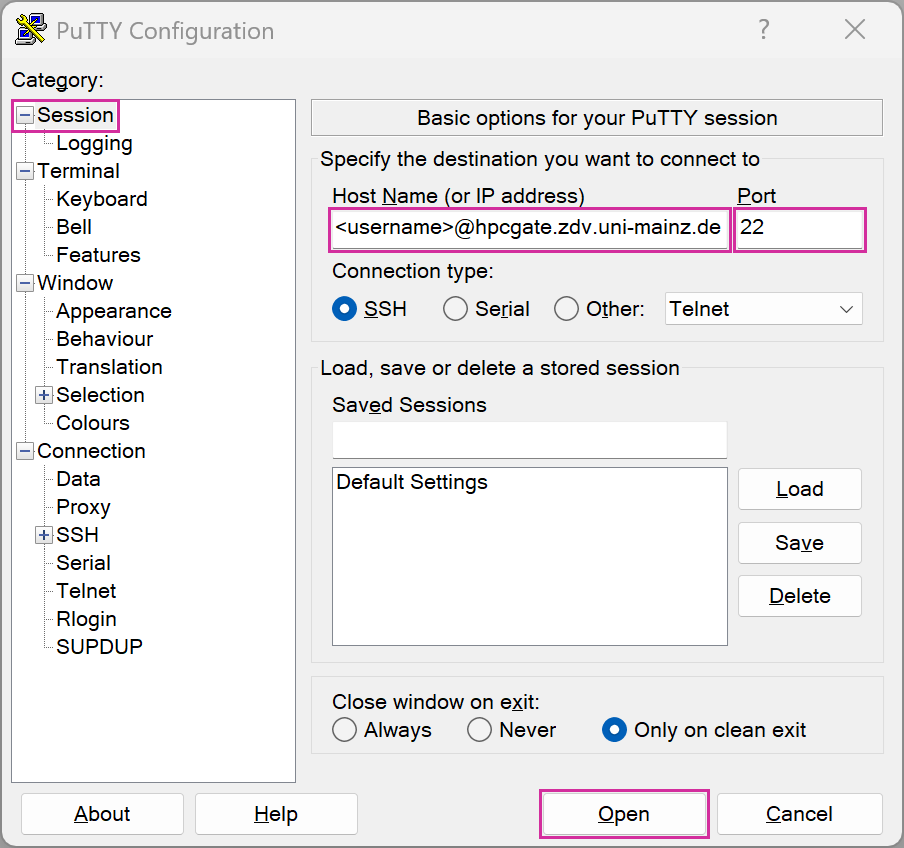
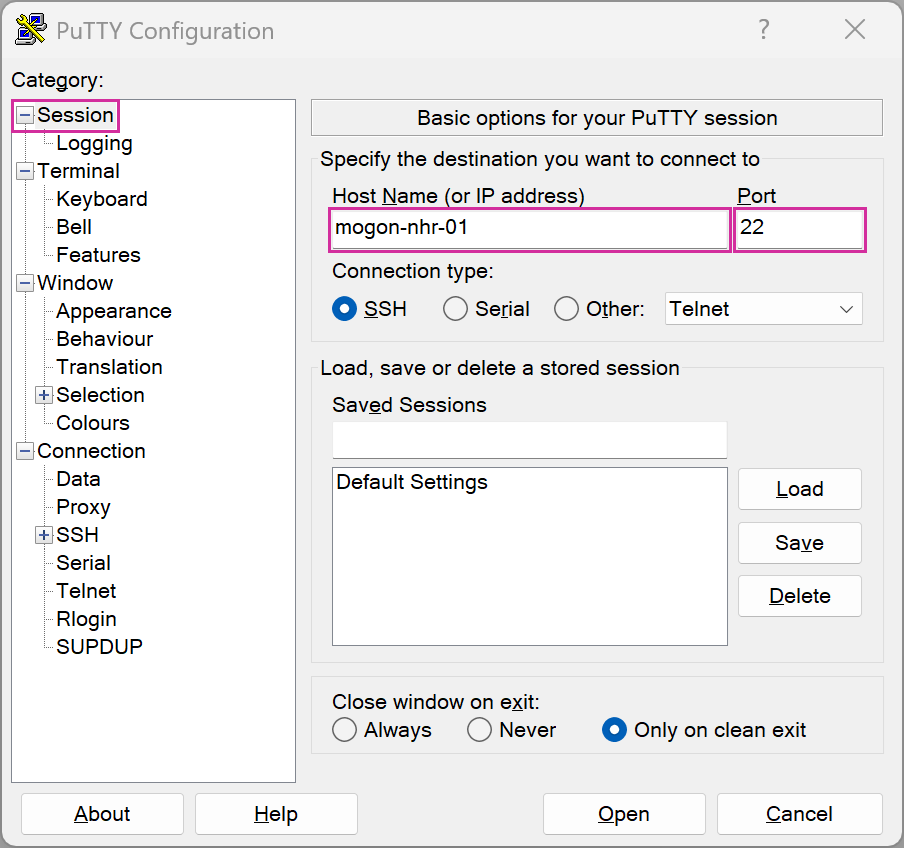
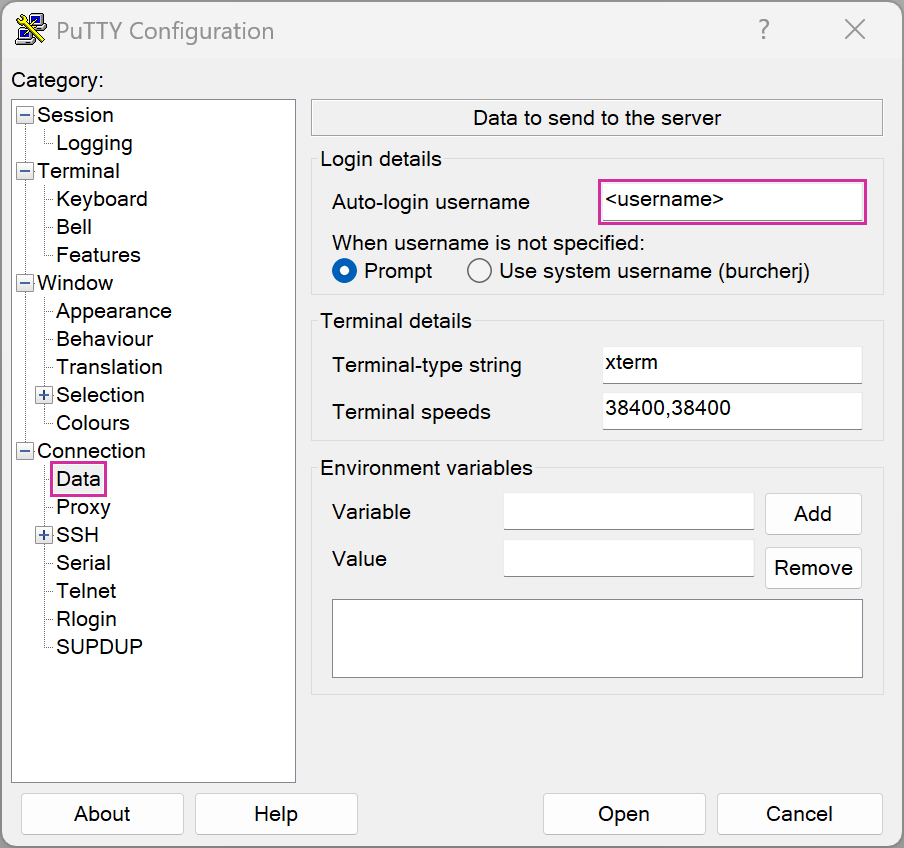
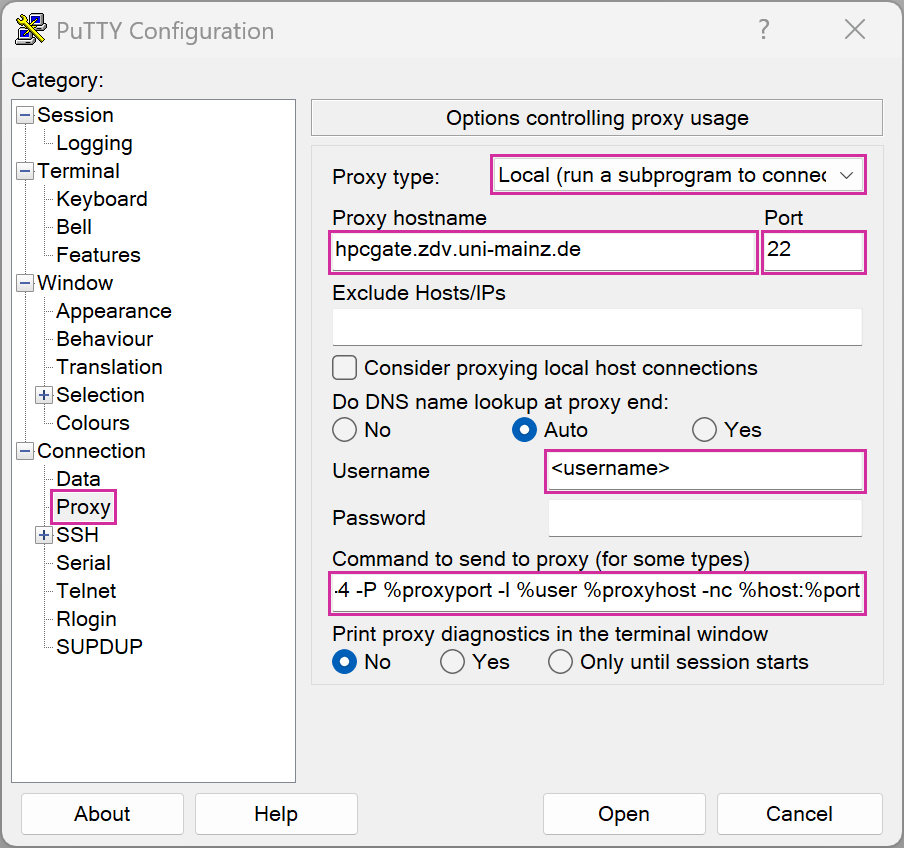
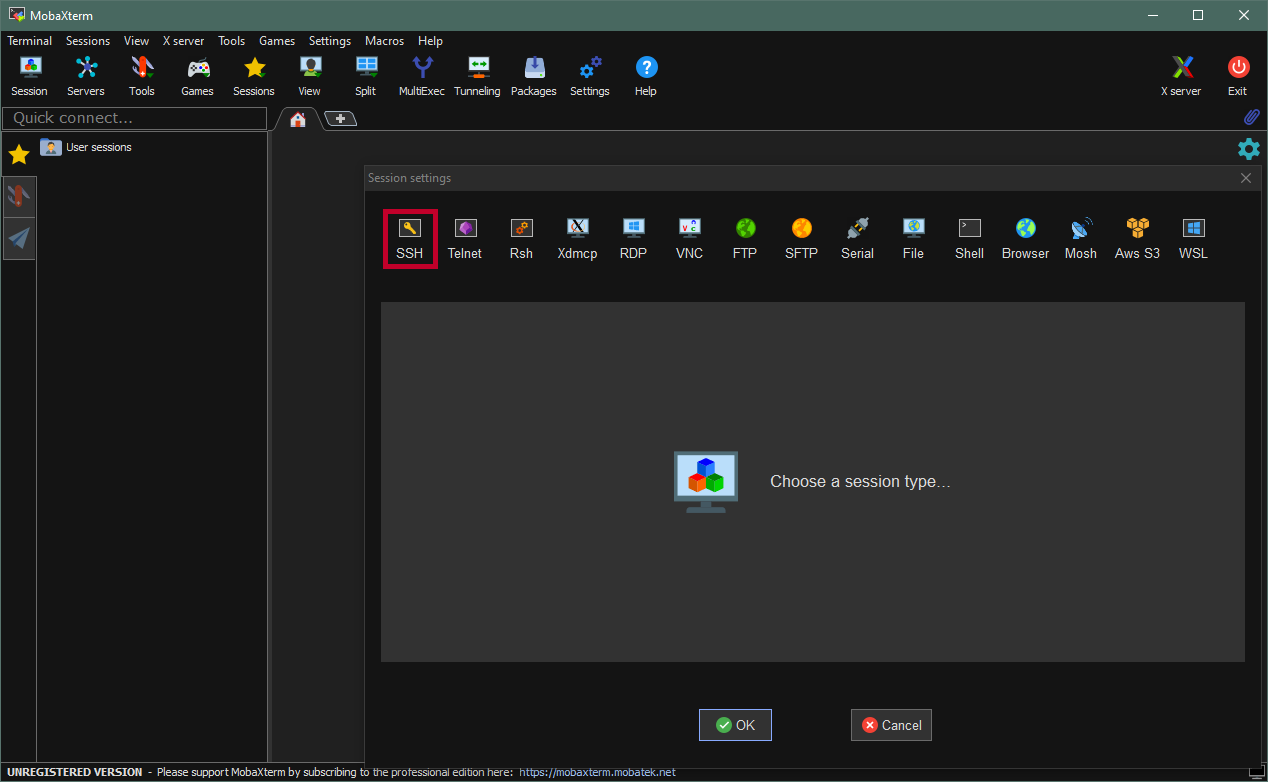
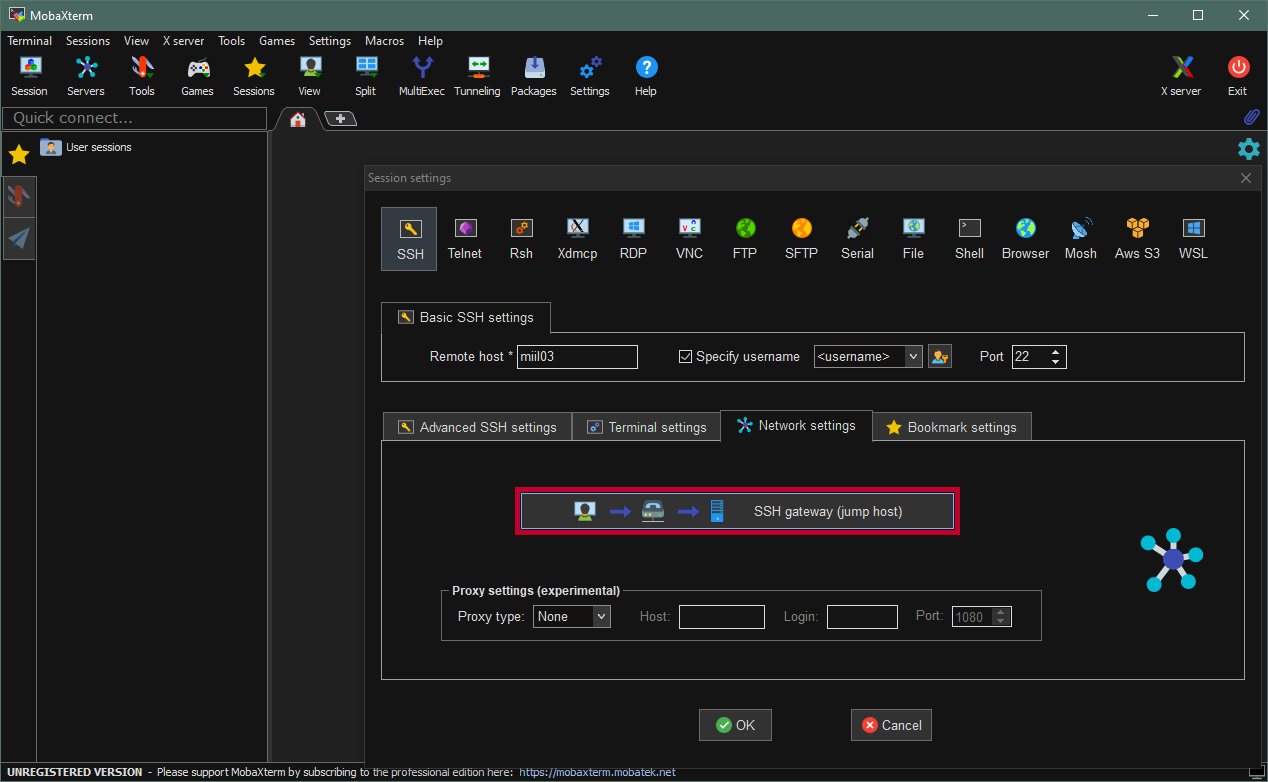
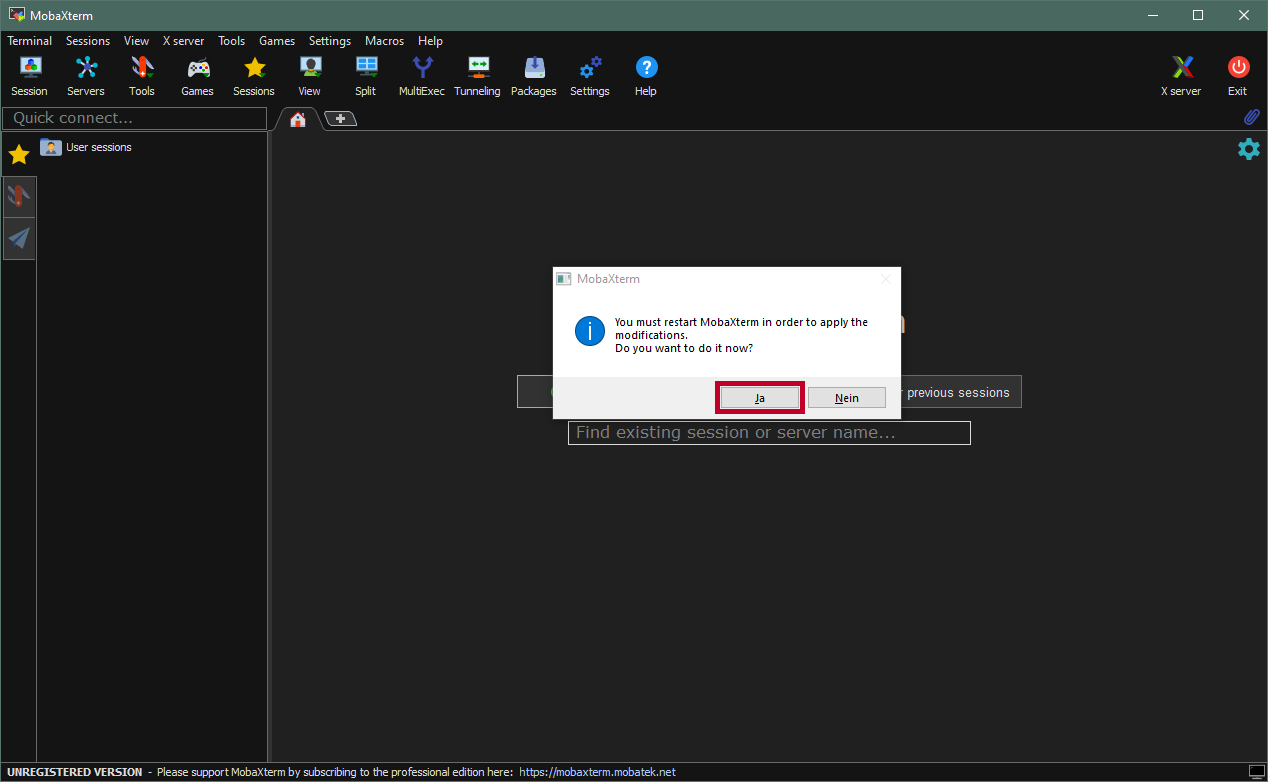
Title here
Summary here

How to connect with MOGON via SSH
Onboarding Progress Checklist
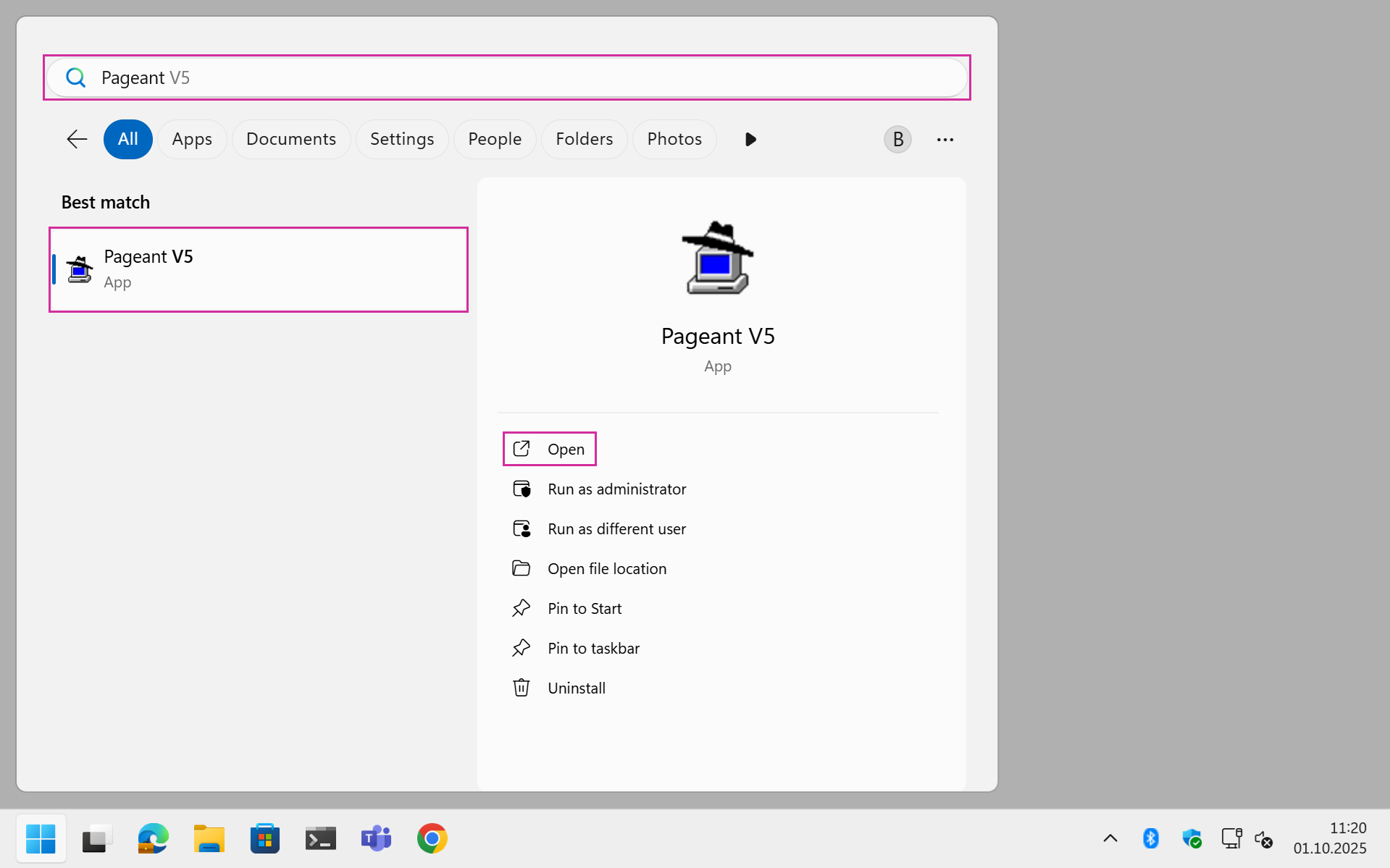

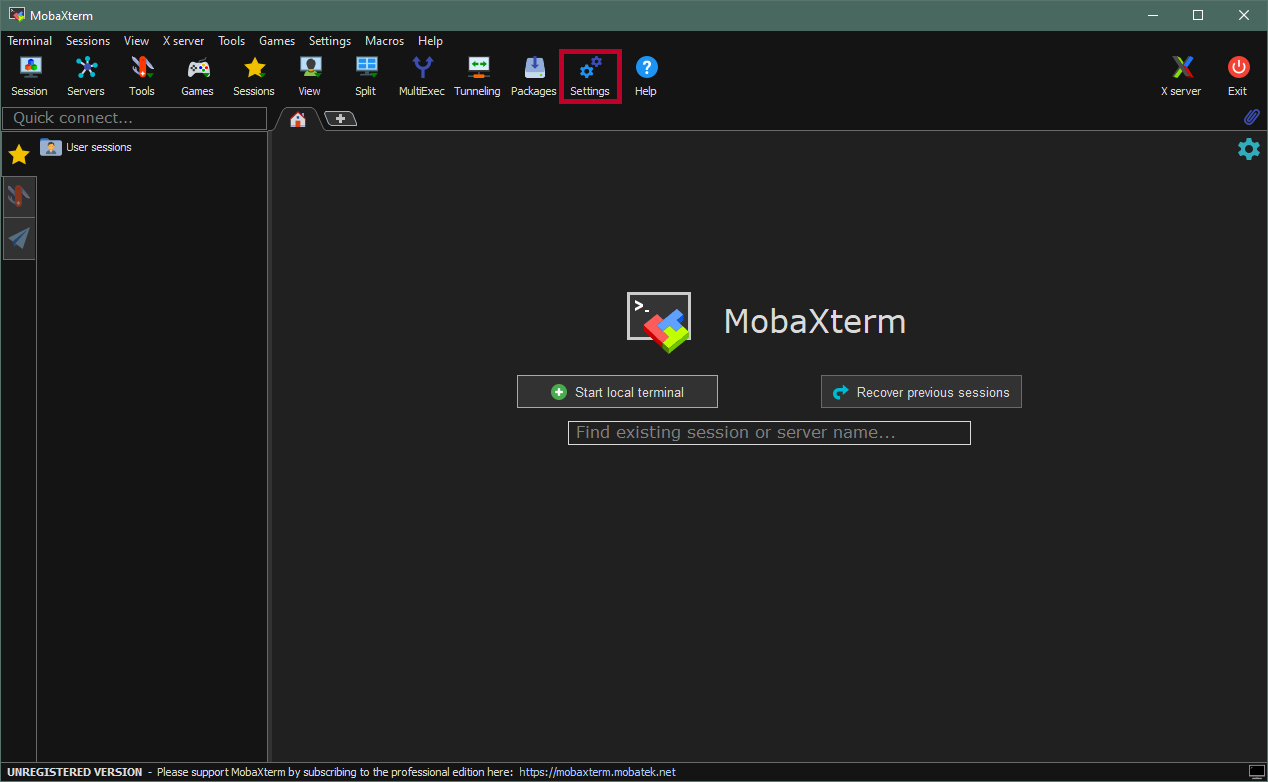
Verify that the ssh-agent is running:
Get-Service ssh-agentIf the shh-agent is not running, start it with:
Start-Service ssh-agentTo have ssh-agent automatically start with Windows, you can execute (from elevated prompt):
Set-Service ssh-agent -StartupType AutomaticAdd your new SSH key to the ssh-agent.
ssh-add <YourNewPrivateKey>Be sure to specify the correct path to the SSH key or go to the directory of the key before executing the command.
Verify that the ssh-agent utilizes the SSH key
ssh-add -lCreate the following file .ssh/config with an editor and add the following lines:
Host hpcgate
  User <username>
  HostName hpcgate.zdv.uni-mainz.de
  Port 22
  IdentityFile C:/Users/<username>/.ssh/<YourNewPrivateKey>

Host mogon
  HostName mogon-nhr-01.zdv.uni-mainz.de
  User <username>
  Port 22
  IdentityFile C:/Users/<username>/.ssh/<YourNewPrivateKey>
  ProxyCommand ssh.exe -W %h:%p -q hpcgate
The path to your IdentitiyFile may be different. Please make sure the path is correct before you save the file.
Start a new Session to a MOGON service node. For example, you can now simply use:
ssh mogon-nhrDone. You should now be able to log in to the various MOGON service nodes. You can add each login node to your ~/.ssh/config file. A list of MOGON Service Nodes can be found here.
For testing purposes, or if you only need to do this occasionally, you could use this command to connect to the MOGON NHR or MOGON KI cluster:
ssh -J <username>@hpcgate.zdv.uni-mainz.de <username>@mogon-nhr-01Simply replace <username> with your JGU-username. An overview of the MOGON service nodes is given here.
You can also explicitly specify the SSH key for the connection:
ssh -i ~/Path/To/Private/Key -J <username>@hpcgate.zdv.uni-mainz.de -i ~/Path/To/Private/Key <username>@mogonThe SSH key for the jump host and the MOGON service node do not necessarily need to be identical. However, the SSH keys must have been added to your JGU account and have the correct properties.
The ProxyJump option was added in OpenSSH 7.3 and is basically shorthand for the ProxyCommand. For OpenSSH versions below 7.3. you can use the following command:
ssh -o ProxyCommand="ssh -W %h:%p <username>@hpcgate.zdv.uni-mainz.de" <username>@mogonSimply replace <username> with your JGU-username and <service-node> with the MOGON service-node you want to access. You can find an overview of the MOGON service nodes
here.
Check your SSH Client Version with ssh -V
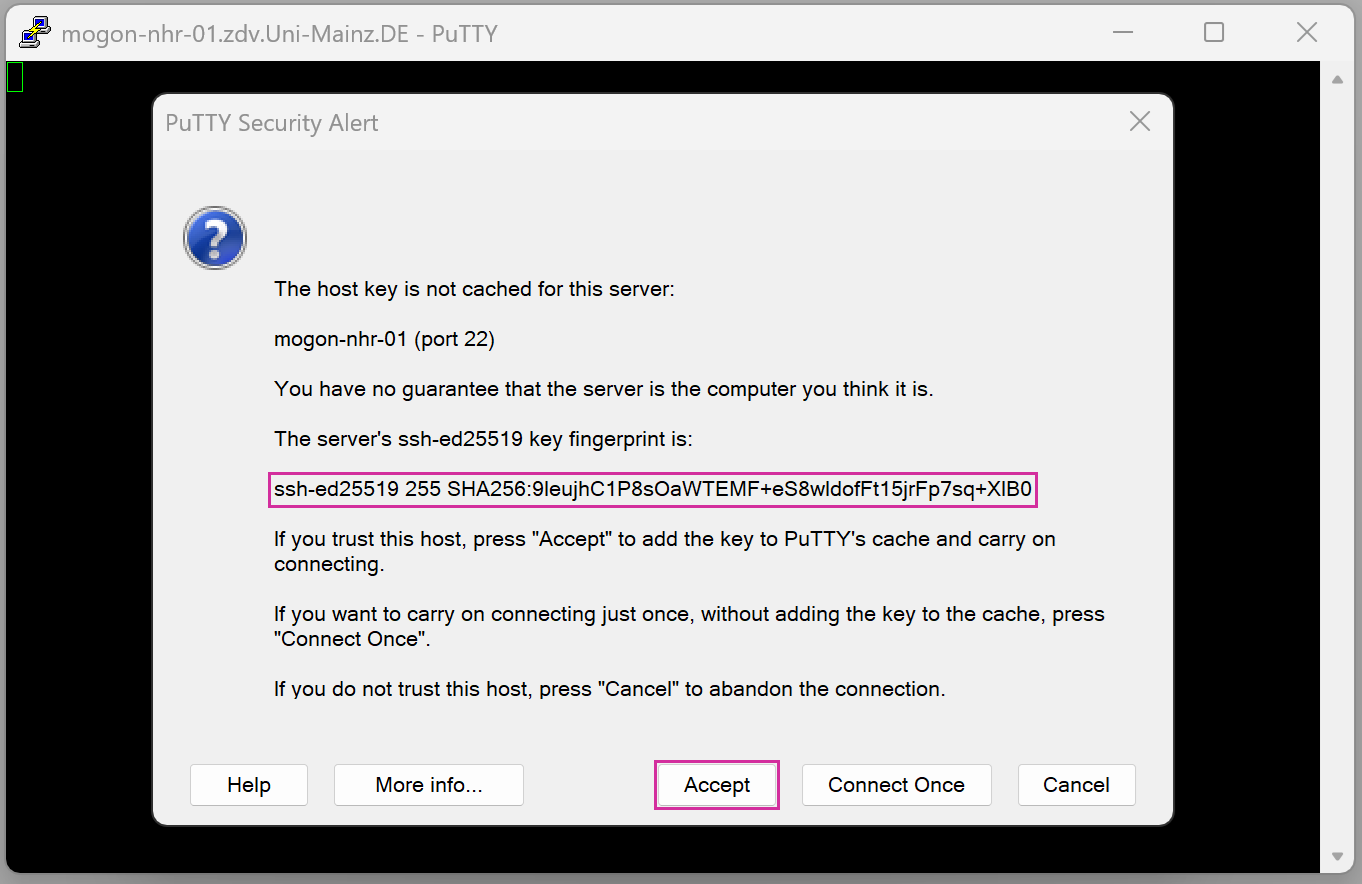
If you connect to a new remote location for the first time, you will be asked to confirm the identity of the server you are communicating with.
The authenticity of host 'hpcgate.zdv.uni-mainz.de (2001:4c80:40:63c:4:86ff:fe5d:b22d)' can't be established.
ECDSA key fingerprint is SHA256:pzKsg8DkGkzAxDw2n8Uggk/jbboSpNYi5w47LcXjTxk.
Are you sure you want to continue connecting (yes/no/[fingerprint])? █
You can check the SSH Fingerprints of our service nodes in the table below. Confirm by typing yes or pasting the relevant fingerprint for an automatic verification.
On establishing a connection for the first time, you will be asked to confirm the identity of the server you are communicating with. Please compare indicated fingerprints to the ones listed below.
| Cipher | Hash | Fingerprint |
|---|---|---|
| RSA | MD5 SHA256 |
92:8b:0d:af:53:27:09:b9:c0:13:a5:7c:47:5f:18:10 5/h9wmWi44ViIpMm1I/7Ox/vXZ/JYR2tM3QJ7QbFNDA |
| ECDSA | MD5 SHA256 |
e9:d9:54:5d:a3:ba:0e:d5:ce:e5:02:c0:70:8e:05:d2 pzKsg8DkGkzAxDw2n8Uggk/jbboSpNYi5w47LcXjTxk |
| ED25519 | MD5 SHA256 |
63:67:65:76:5f:ad:fb:20:f2:68:92:cf:d5:49:2c:dc CNbkj04hEuJ9IwgGkTBXbF1WtE/Nb46kPVSejKUGfRU |
| Cipher | Hash | Fingerprint |
|---|---|---|
| RSA | MD5 SHA256 |
23:fc:f8:0d:5c:5b:f4:c2:5b:93:c0:a3:6a:2c:c5:a7 tSQKQ05IAPWTj0MKyZzSAqDAtotjWkCWr2s3XtvTiS0 |
| ECDSA | MD5 SHA256 |
fd:94:b7:64:15:e4:e9:64:b4:96:87:1f:64:b9:06:f2 nncHWMQPjZyzupZ7sAdNDSJpqB12Fl4DXoyq4s474ss |
| ED25519 | MD5 SHA256 |
7f:a1:4c:5b:4e:47:ad:76:8c:be:63:c2:90:e5:aa:da 9leujhC1P8sOaWTEMF+eS8wldofFt15jrFp7sq+XIB0 |
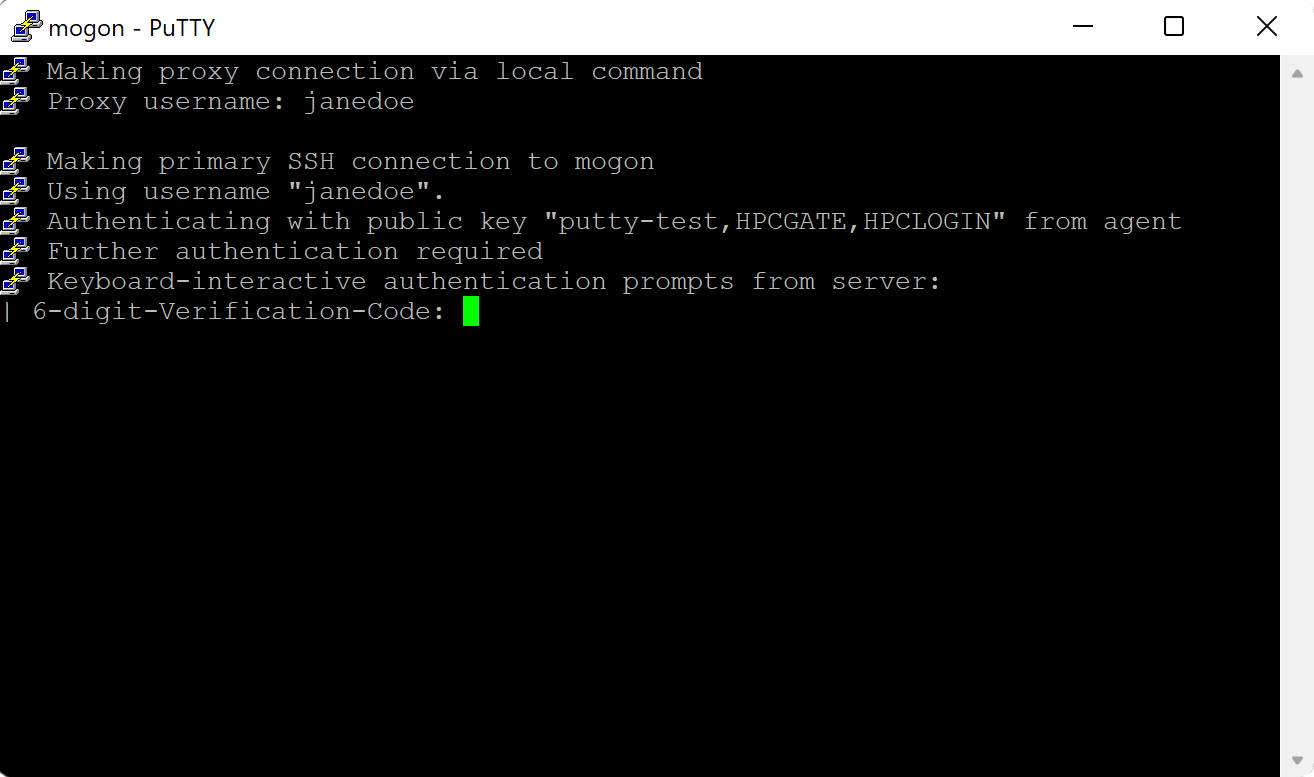
If your SSH setup is correct and enough time has passed for your uploaded public key to be spread throughout our system, a successful connection attempt is going to end with the prompt for your privacyIDEA password (TOTP value).
ssh mogon-nhr
6-digit-Verification-Code: █
To continue, you must have complete the second step of the onboarding process (setup of a mobile authenticator). Please enter the 6-digit TOTP value displayed on your phone.
Did you know?
Sometimes privacyIDEA requests two successive TOTP values to automatically resynchronize your token. Don’t use the same code more than once, even if you are asked for the verification code twice in a row.
Failed Login Attempts
As a brute force prevention measure, your TOTP token will be deactivated after you have entered the wrong TOTP value ten times in a row. To reactivate your token,