Follow this guide to set up an authenticator app compatible with MOGON for a second factor of authentication (2FA).
Onboarding Progress Checklist
Ask your PIPI stands for Principal Investigator, typically your project lead or supervisor who manages HPC access requests. to add your JGU account to an HPC project.
Generate an SSH key pair on your local machine.
Upload your public SSH key to your JGU account.
Prepare your smartphone for 2FA by installing freeOTP or privacyIDEA.
Send an e-mail
to the HPC Group from your JGU account.
The two-factor authentication to verify personal usage of your MOGON account requires you to download and install an authenticator app on your smartphone.
Please pick one of the two recommended apps below, which are checked for compatibility with our system.
Other apps may not function properly and we cannot provide support if you face trouble with a different app.
If you nevertheless decide to use another app, make sure it supports sha-512.
Make sure your smartphone with freeOTP or privacyIDEA app installed is within reach.
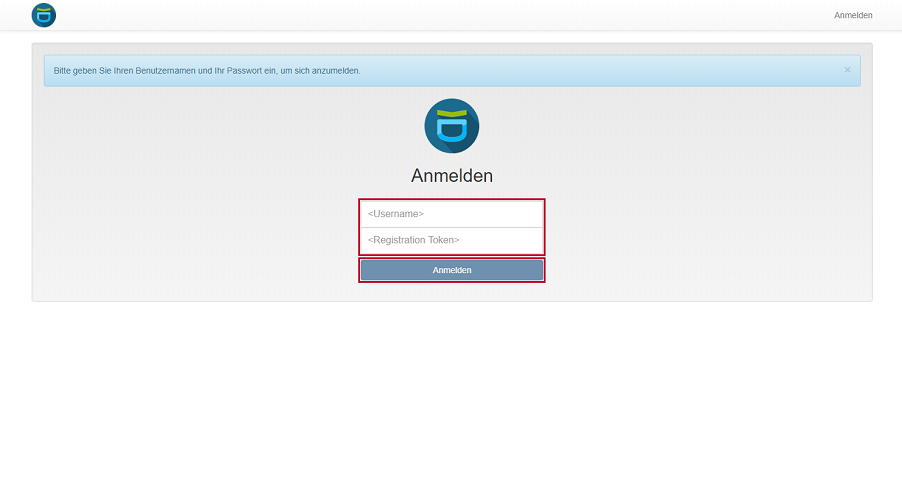
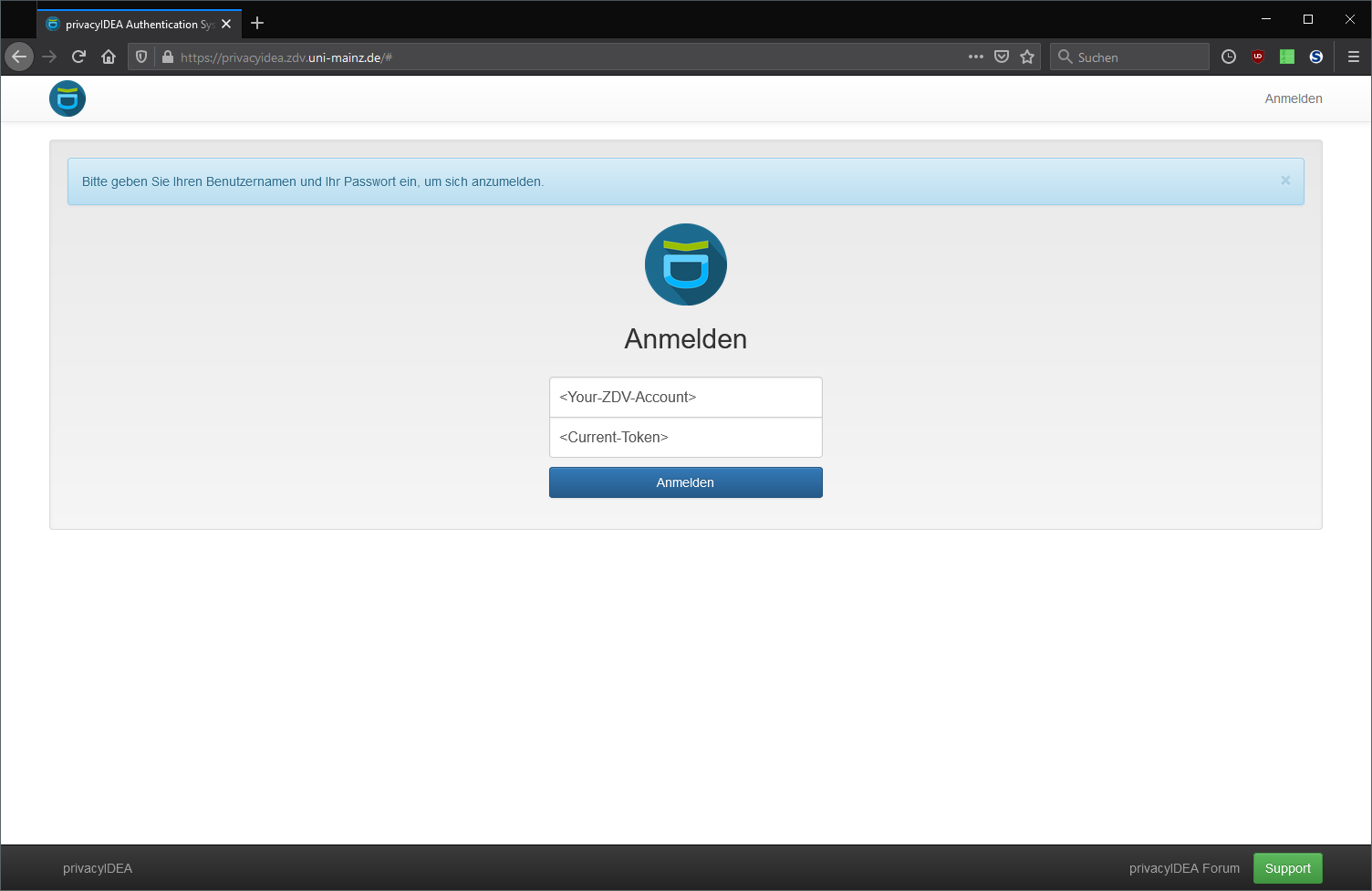
Browse to privacyIDEA and get ready for the login. Browser extensions, such as uBlock, uMatrix and NoScript, probably will prevent the website from functioning properly.
The credentials for the login are as follows:
Username: JGU account login name
Password: One-time registration key
The one-time registration key is sent to you by e-mail after your account has been added to an HPC project.
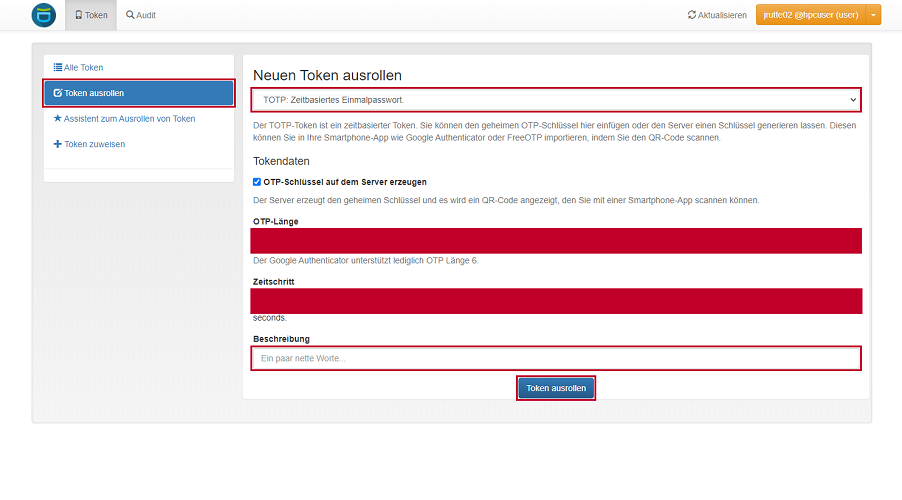
After successful login, click Token ausrollen in the menu on the left side.
On the page Token ausrollen select TOTP: Zeitbasiertes Einmalpasswort as token. Do not change OTP-Länge and Zeitschritt. Fill in the field Beschreibung and click on Token ausrollen at the bottom of the page.
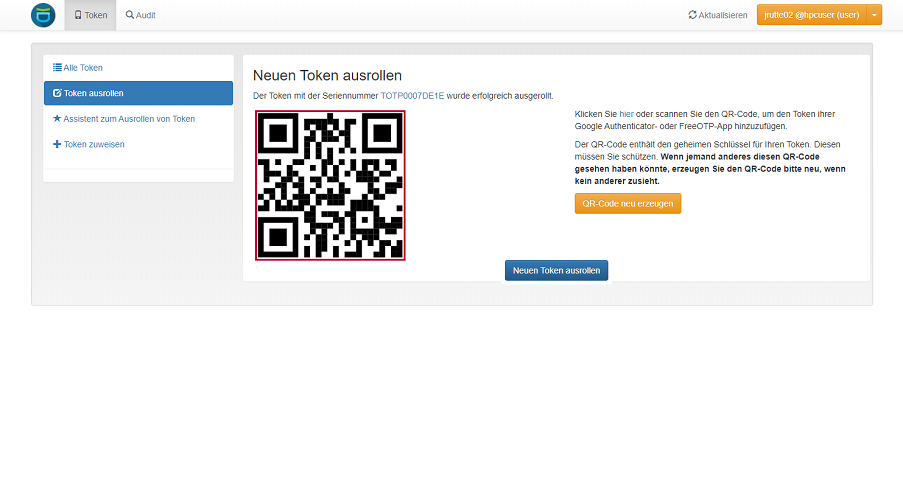
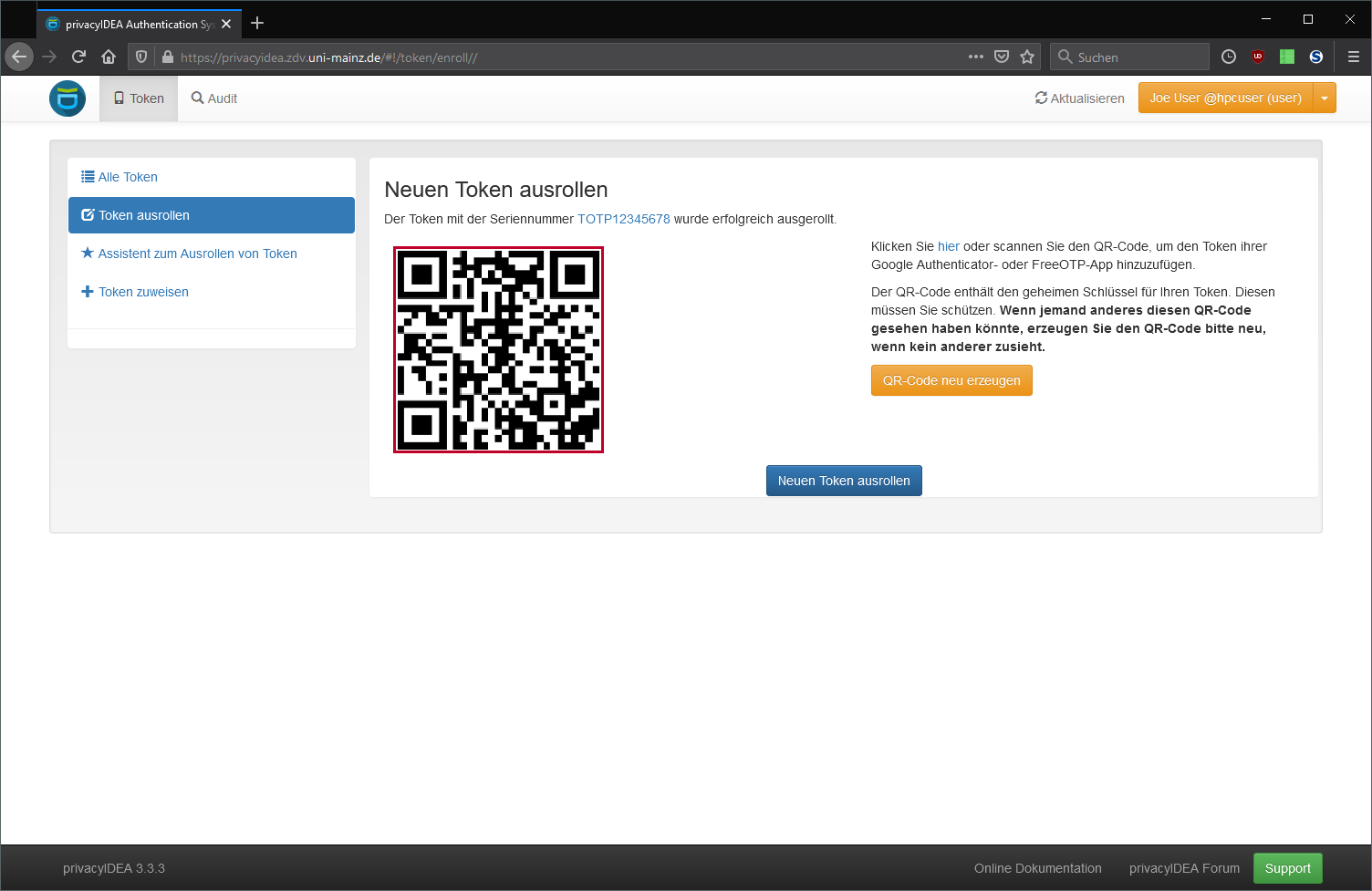
Scan the QR-Code on your screen with the 2FA app of your choice on your smartphone.
Do not share the QR-Code with anyone. Employees of the HPC Group will never ask you for your QR-Code or other login credentials.
Do not scan the QR-Code shown above!
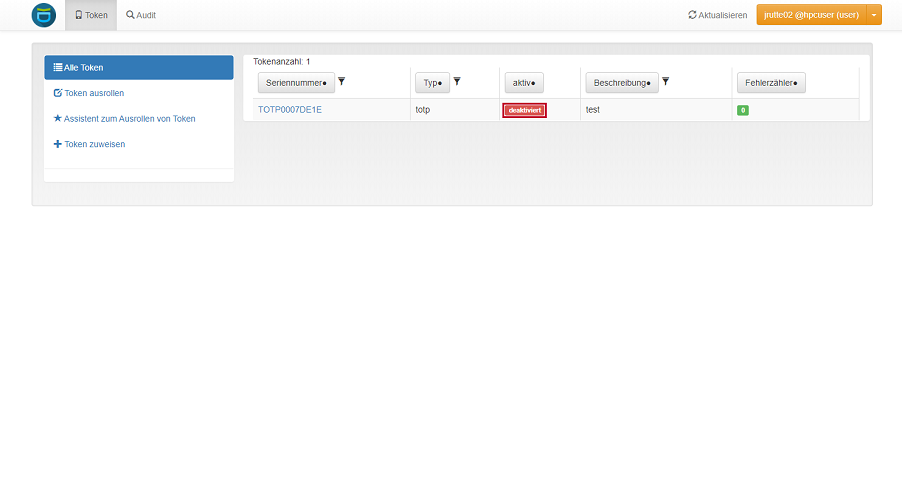
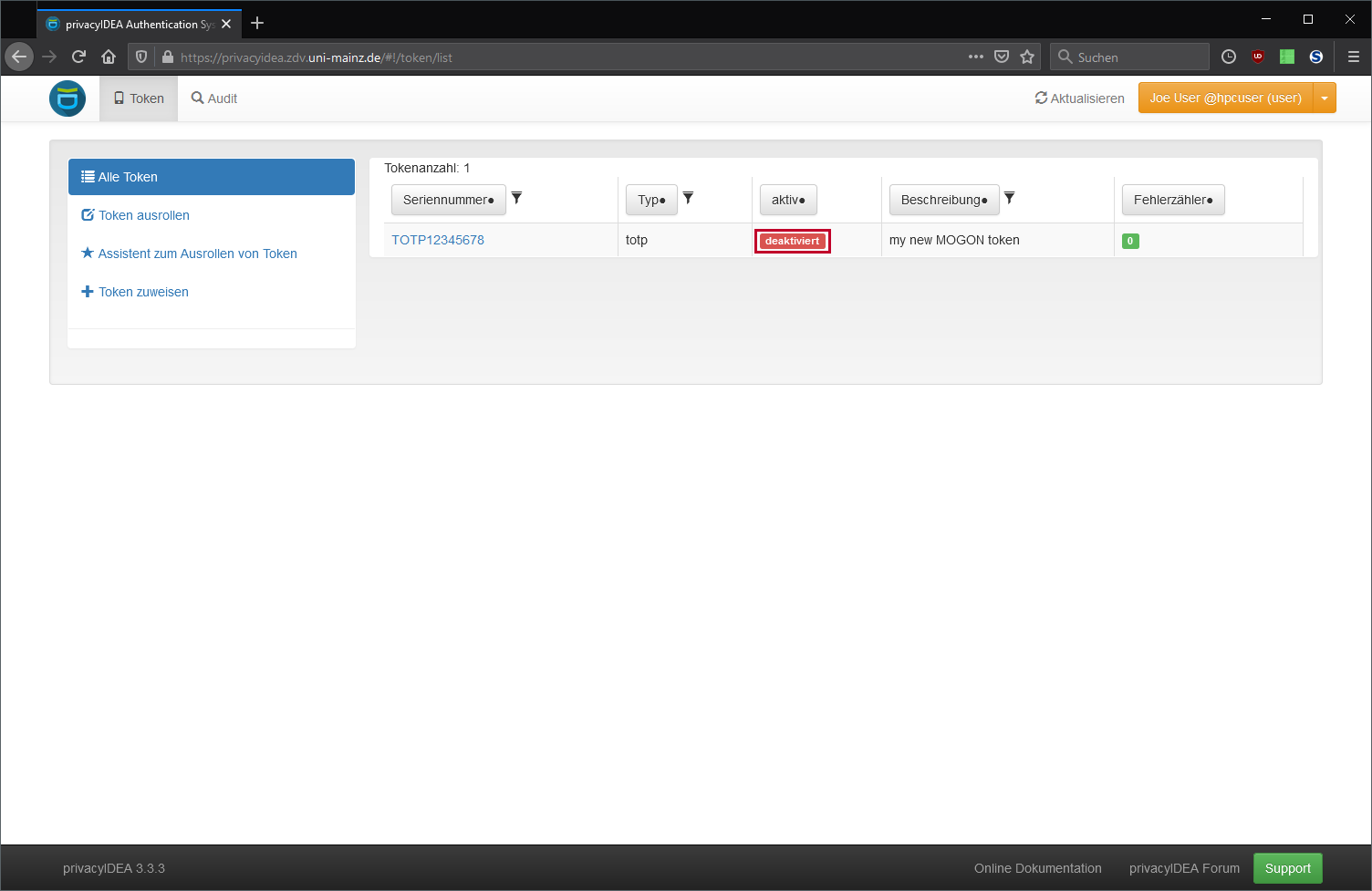
The newly created token is initially deactivated and must be activated by an HPC-Admin.
Ask your PIPI stands for Principal Investigator, typically your project lead or supervisor who manages HPC access requests. to add your JGU account to an HPC project.
Generate an SSH key pair on your local machine.
Upload your public SSH key to your JGU account.
Prepare your smartphone for 2FA by installing freeOTP or privacyIDEA.
Send an e-mail
to the HPC Group from your JGU account.
Complete the 2FA configuration with an HPC admin.
Log in to MOGON via SSH.
Once you have installed freeOTP or privacyIDEA on your smartphone, and prepared the TOTP token, please send an e-mail
with subject MOGON Authentication to our ticket system from your JGU account.
We will send you an appointment for the short video call and the link to our BigBlueButton session.
The call should take no longer than a few minutes. Please have your ID or passport ready for verification.
Migrating privacyIDEA to a new smartphone requires that your old one is still functional and you can log in to MOGON with it, and that your new smartphone is already set up and functional.
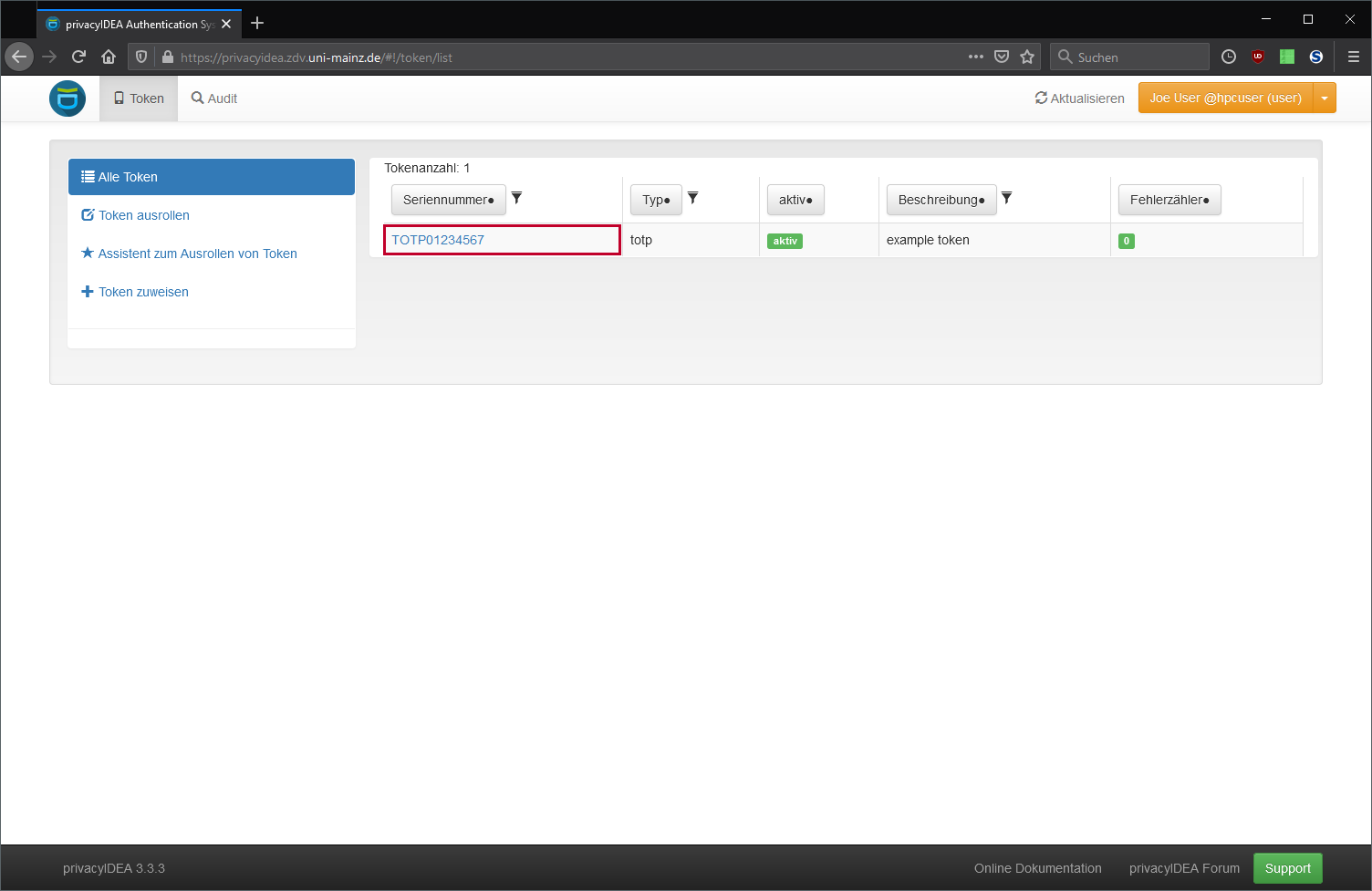
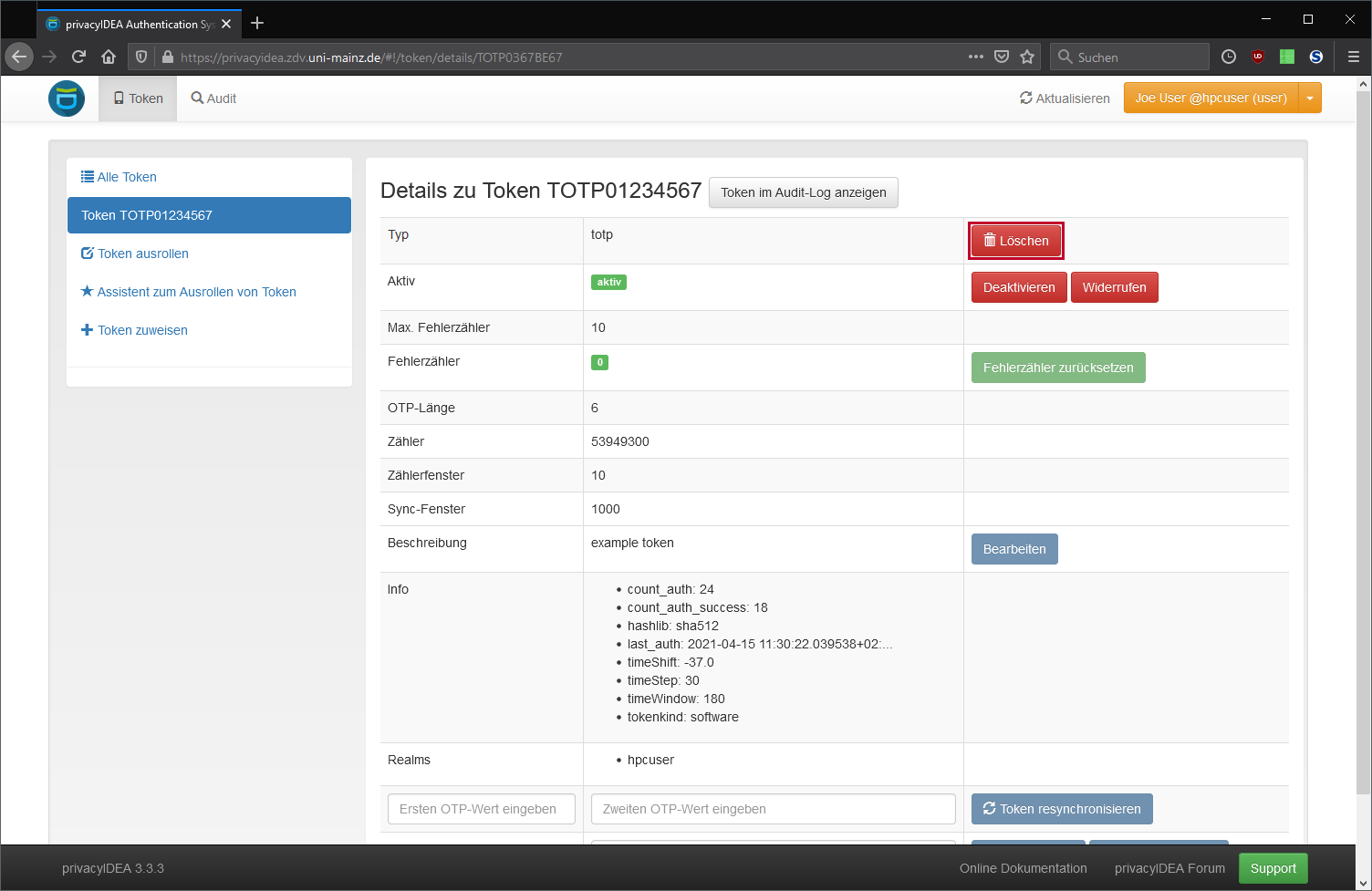
After successful login, you should see the token overview. Now, click on the serial number of the token you want to delete to access the token’s detailed overview page. In this example the serial number is TOTP01234567.
You can now delete the token permanently by clicking on the Delete|Löschen button.
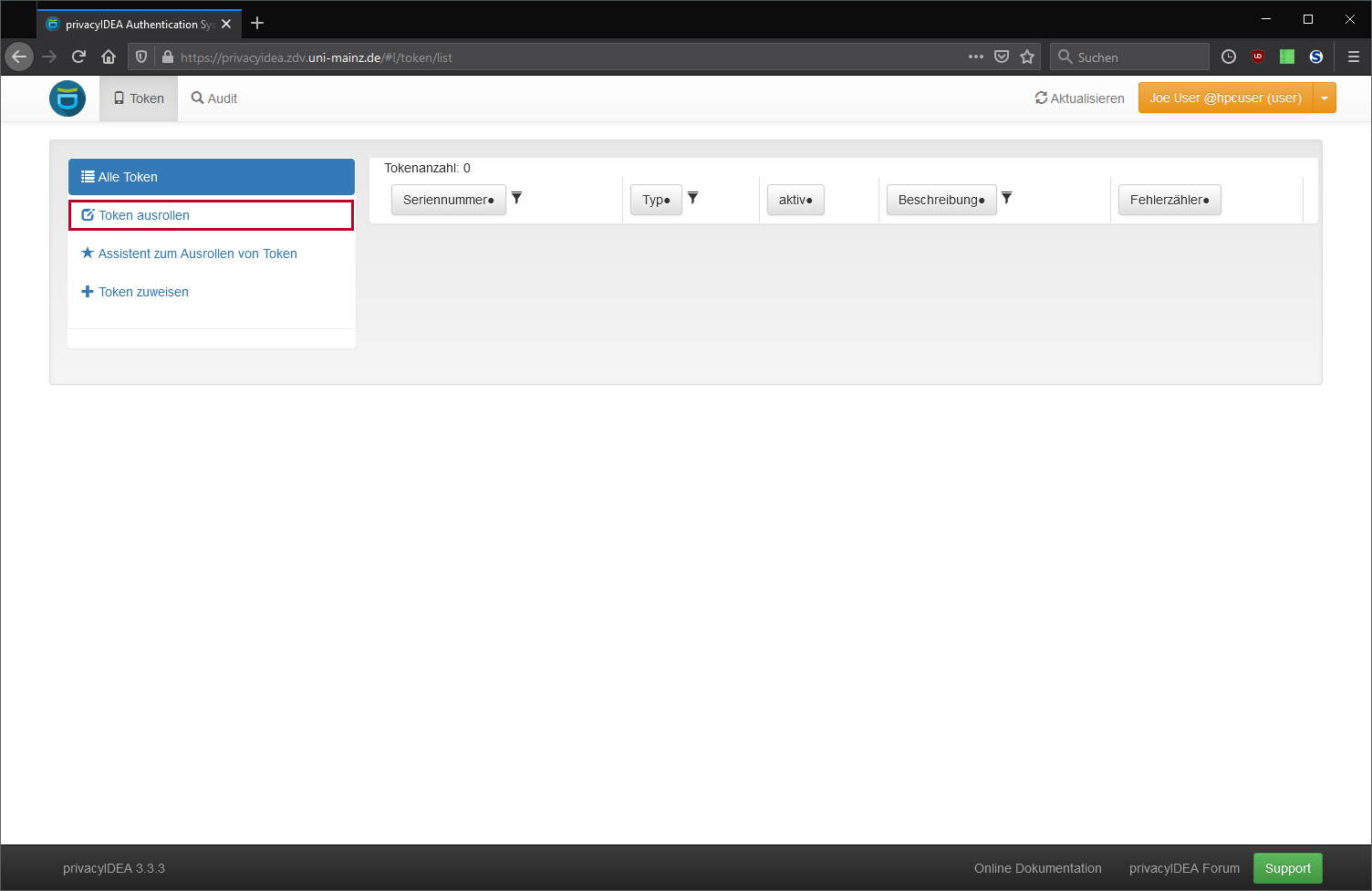
After you deleted the token, you will be redirected to the overview where the token should have disappeared. Now, click on Enroll Token|Token ausrollen to enroll a new token.
On the next page just fill out the field Description|Beschreibung. Afterwards, click on the Enroll new Token|Token ausrollen button at the bottom of the page.
Now scan the displayed QR-Code on the next page with the 2FA app on your new smatphone.
The newly created token is initially deactivated and must be activated by an HPC admin. Please contact the HPC group and ask for the token to be activated. Always specify the serial number of the token when contacting us for activation.
iPhone Backup
If you use an iPhone, you can restore your TOTPs when setting up your new smartphone from an encrypted local backup on your computer.